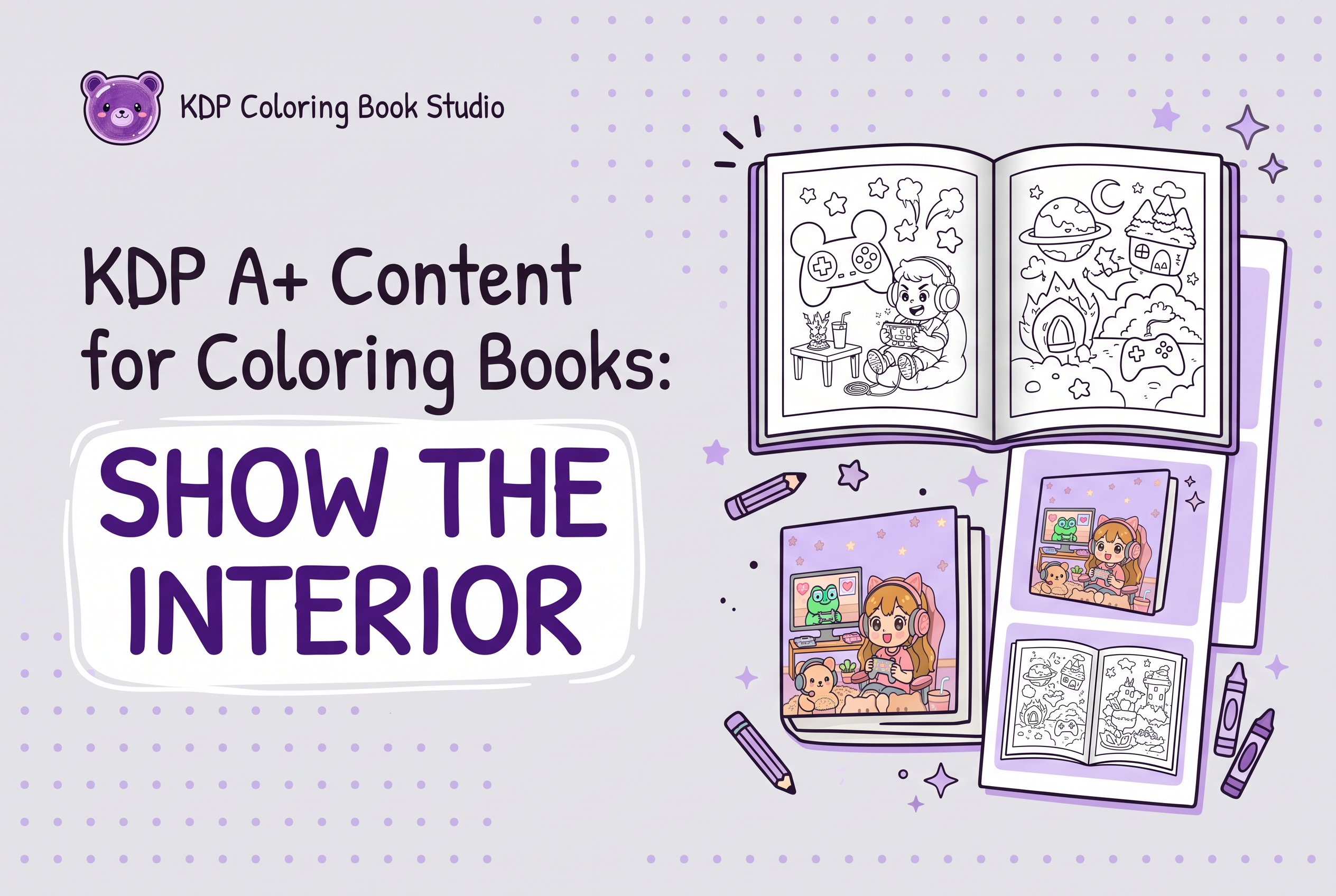

KDP A+ content for coloring books is a block of images and text you build in your KDP account to appear on the product page, and you can use it to show what the interior pages really look like. It does not replace Look Inside, it does not unlock extra ranking, and Amazon reviews every submission before it goes live.
That makes it a presentation tool and nothing more. If your coloring book is published or on preorder, you can build a project, add modules, apply it to your ASIN and submit it. This guide covers what A+ is, who qualifies, what to show, which rules get content rejected, and the exact steps in KDP. KDP Coloring Book Studio prepares the pages and cover. You manage everything on Amazon yourself.
What KDP A+ Content is and what it is not
A+ Content is author-supplied images and text that Amazon displays on the product page, in the "From the Publisher" area. It generally sits lower on the page, below the description, though placement can vary. You build it in KDP's A+ Content Manager, not on the book's detail page itself.
Four features get confused, so separate them:
Look Inside: Amazon's sample of the book's actual pages. For KDP print books it is tied to publishing with an ISBN, and low-content books published without one do not get the sample. A+ cannot enable it or stand in for it.
Book description: The text block near the top of the listing. Plain text and light formatting. For wording, see coloring book listing description.
Author Central: Your author page and editorial reviews. It is a separate tool, and Amazon directs authors there for editorial reviews, not for A+.
A+ Content: Designed images and text you control, reviewed by Amazon before display.
A+ is not an interactive preview. It is a set of pictures. Use it to show a clean, honest view of the interior, laid out the way you choose.
Eligibility and where A+ appears for a paperback coloring book
Paperback coloring books are eligible when the title is published or available for preorder and its ASIN sits in your KDP account. One A+ project can be applied to several formats, such as paperback and ebook, by selecting each ASIN.
Two practical points:
You need the ASIN first. A draft that has never been published or put on preorder has nothing to attach A+ to. Finish the listing, then come back.
It is per marketplace. Submit separately for each Amazon marketplace where you want it shown. A US submission does not carry over to another country's store.
On the page, expect A+ to sit further down than the cover, the title block and Look Inside. Shoppers who scroll past the description will see it. Shoppers who decide from the search thumbnail may never reach it, so the cover and title still do the heavy lifting. If those need work, start with coloring book title and your cover.
Do I need Author Central to get A+ Content on a paperback?
Author Central is a separate author profile tool. It is not the same thing as A+ Content, so confirm which one your account actually uses. Eligibility for A+ on a paperback depends on Amazon's current rules for your title and marketplace, which can change. The reliable check is to open the title in your KDP Bookshelf and see whether the A+ Content option appears. If it does not, review KDP's current help documentation or contact KDP support before assuming your book qualifies.
What to show: an accurate interior presentation, not a second sample set
Use A+ to give a fair picture of the whole interior. Don't repeat the pages already in your gallery. The sample-page decision (which pages best represent the book) is covered in coloring book sample pages. A+ is the next layer: how those pages are presented.
Amazon's guidelines ask for images unique to A+ rather than reused detail-page gallery images, so plan new compositions. Practical options:
A page grid. Several different pages side by side, so a buyer sees the range of subjects and difficulty at a glance.
One page, large. A single illustration at module width so the line quality is visible.
A short text block. What the book contains, such as the number of pages and the single-sided layout, stated as plain fact.
Page variety. If the book mixes simple and detailed pages, show both. See coloring book page variety.
The rule that matters most: show what the buyer will actually receive. If the picture promises more detail than the pages deliver, you get returns and unhappy reviews, whatever the layout looks like. Do not mock up pages that are not in the book. Do not show finished, colored artwork unless you label it plainly as an example of a colored page.
Image and text rules that get A+ rejected
Amazon publishes A+ Content Guidelines, and noncompliant content can be rejected, with the ASIN itself at risk in serious cases. Check these before you submit.
Image files
Format: JPG or PNG in RGB color.
Size: up to 3 MB per file.
Resolution: KDP's A+ Content guidelines specify 300 dpi for many modules. KDP's creation instructions recommend high-resolution images at 300 dpi for best results.
Dimensions: KDP does not resize uploads, so match the size shown for each module. Examples include a minimum 970 by 300 px for the Standard Image and Text Overlay module and 300 by 300 px for Standard Three Images and Text.
No GIFs, blurry or low-quality images, watermarks, or text too small to read.
Text and claims
No prices, discounts, promotional language or purchase prompts.
No unsupported or unsubstantiated claims. If you cite an award or endorsement, include the date and the granting organization.
No guarantees, and no off-Amazon return or refund terms.
No shipping details, QR codes, personal or contact information.
No external links or redirects.
No content that imitates Amazon branding or page elements.
No quotes from customers or private individuals.
Rights and accessibility
You must have the rights to every image and every line of text.
Write descriptive alt text for each image.
A common failure for coloring books is a banner reading "Best seller" or "Perfect gift, order today." That is promotional language and unsupported. Describe the book instead.
Step by step: building and submitting A+ in KDP
The flow takes place inside your KDP account.
Sign in to KDP and open Marketing.
Choose the marketplace you are submitting for.
Select Manage A+ Content to open A+ Content Manager.
Create a project. Add text and image modules. KDP offers 17 modules and allows up to five per detail-page layout. You can reorder or remove modules as you work.
Upload images sized to each module, and add alt text.
Apply the project to your ASIN. Select the paperback ASIN, and others if you want the same content on another format.
Preview on desktop and mobile. Read every line as a skeptical buyer would.
Submit for approval.
Amazon says approved content typically appears within eight business days. If it comes back rejected, the notice points to what failed. Fix it and resubmit. Repeat the process for each marketplace.
Two habits save time. Keep your A+ images in a separate folder from your interior files, so you never upload a print file by mistake. And build the project only after the cover, title and Look Inside are final, since A+ should match them exactly. If you are still planning the launch, run through the coloring book launch checklist first.
How do I add A+ Content to a KDP book in 2026?
You add A+ Content from inside your KDP account: open your Bookshelf, find the title, and look for the A+ Content option, which hands you off to the A+ editor for that book. Amazon changes menus and rules over time, so check KDP's current help pages before you start and follow whatever the live editor shows. Build your modules, preview them, then submit for review. Plan your images first so you are not redoing them after a rejection.
What are the steps to add A+ Content to my KDP book?
Finish your images first, then open the title in KDP, launch the A+ editor, and add modules one at a time. Upload each image, write the supporting text, and preview the page the way a shopper would see it. Submit for review and wait for approval, since Amazon reviews A+ before it goes live. Keep your files organised by module so a rejection only means fixing one image. Show your real interior pages accurately rather than staged extras.
Limits and honest expectations
A+ Content does not promise higher rankings or more sales. It gives buyers who reach it a clearer look at the book, and that is the only claim worth making. Do not write copy that implies results.
You own the review. Amazon's approval check does not tell you the content is accurate, and KDP policy compliance is your responsibility, including how you disclose AI-generated content (see KDP AI disclosure). Open the final files, compare them with what you show on the page, and fix mismatches before you submit.
KDP Coloring Book Studio fits in one place. It is an AI tool that generates a complete coloring book: the interior pages plus a full cover, ready for you to upload to your own KDP account. It does not log in to Amazon, build your A+ project or submit anything for you. You take the finished pages, pick the ones worth showing, size your A+ images, and manage Amazon yourself. Paid-plan users own the output and can sell it commercially, including on KDP.
If buyers keep misreading the book, the fix may come earlier than A+. Look at what they say in coloring book customer reviews and adjust the next title.
Build the pages first, then show them honestly
A+ Content is worth the effort only when it matches the book a buyer will hold, so the order matters: finish the interior and cover, then design the A+ images from those exact pages. Generate your pages and cover in KDP Coloring Book Studio, start on the free tier to see the output, then build your A+ project in your own KDP account and check every module against the guidelines before you submit.
Frequently asked questions
Can KDP A+ content show the inside pages of a coloring book?
Yes, as images you design. You can add a page grid or one large illustration in A+ modules, using images unique to A+ rather than your gallery. It is not an interactive sample like Look Inside. Prepare the pages in KDP Coloring Book Studio, then build and submit the A+ project yourself in KDP.
Is a paperback coloring book eligible for A+ Content?
Yes, if the title is published or available for preorder and its ASIN is in your KDP account. One project can cover several formats, such as paperback and ebook. Author Central is separate: it handles your author page and editorial reviews, while A+ is managed under Marketing in KDP.
How long does KDP A+ approval take?
Amazon says approved A+ content typically appears within eight business days after you submit it. Submit separately for each marketplace where you want it shown. If it is rejected, fix the flagged issue and resubmit. Prices, promotional language, external links and unsupported claims are common reasons for rejection.
Does A+ Content replace Look Inside?
No. Look Inside is Amazon's sample of a book's interior, but while it is not supported for low-content books published without an ISBN, other KDP print books may use a free KDP ISBN or their own ISBN. A+ is separate, shows only the images and text you supply, and appears lower on the page. Choose which pages to feature before you build A+, and use KDP Coloring Book Studio to prepare them.
How do I make a coloring book on Amazon?
Create 24 or more consistent black-and-white pages and a cover, then upload both to your own KDP account and publish. KDP Coloring Book Studio generates the full set of pages and a cover ready to upload. You review the files, upload them, and follow KDP policy.